 foldies
Try a web toy
foldies
Try a web toy 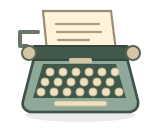
Pocket Typewriter is a small writing toy with keys to tap, a carriage to return and a page you can keep. It is coming in the next Foldies iPhone update as part of the optional Collection. This guide explains the writing toy; it is not an online editor or a playable browser simulation.
Start with a note that fits one little page
Tap the on-screen keys to strike letters onto the sheet. You can also open Typewriter controls, type or paste into Type or paste a few words, and press Type these words. That is useful when you want to compose comfortably before watching the words arrive.
A hardware keyboard works while the controls are closed. The toy remains a small sheet rather than a scrolling document: there are 44 columns on each line and 24 lines on a page.
Try a three-line note: “One good thing today.” Then a detail you want to remember. Then your name. The short format gives you room to experiment with the machine without needing a whole letter.
Use Return when you reach the margin
Pocket Typewriter does not automatically wrap a sentence onto the next line. When you reach the right margin, use Return or the carriage-return control to move to a new line. The machine’s margin message tells you when it is time.
You can roll the paper to move between lines, too. That makes it possible to revisit a line already on the sheet. If the page reaches its last line, roll back to an earlier one or start a fresh sheet instead of expecting the paper to grow.
Choose between correcting and overstriking
The Correction tape setting changes what Backspace does. With it on, Backspace moves back and removes the most recent ink mark at that position. You can then type its replacement.
Turn correction tape off and Backspace moves the carriage without erasing the ink. Type again to put another mark in the same position. This is an overstrike: the old mark remains underneath the new one.
For a small experiment, type an X, move back with correction tape off, switch ribbon color, and strike it again. Export the printed page as an image if you want to keep the layered visual result; plain text cannot show overlapping ink.
Make the page feel like yours
Controls lets you choose black or red ribbon and Ivory, Letterhead or Air mail paper. The typewriter itself comes in cream, forest and cherry enamel. Try a red heading with black body text, or a short postcard-style message on Air mail paper.
Sound adds the key strikes and mechanical cues; you can mute it when you want to write quietly. Sound and haptic preferences apply across Foldies, so changing them here also changes the other toys.
Keep a sheet, reopen it, or export a copy
- Read it clearly. Choose Read full page in Controls to inspect your current sheet.
- Start another note. Fresh sheet · keep this page puts the current written page in the local tray and loads a blank one.
- Return to earlier words. Select a page from the tray. It swaps with the page in the roller so you can keep working.
- Keep a separate copy. Choose Export PNG for the printed appearance or Export TXT for plain text. Share printed page and Share text open the corresponding sharing options.
The tray holds up to twelve stored pages, alongside the current sheet. Work is saved locally on the iPhone; there is no account-based cloud sync. Export anything you want to keep outside the app.
Before you start typing
Do I need iPhone Duo?
No. The keyboard and paper also work on an ordinary iPhone. Duo gives the machine a layout across the inner halves.
Does closing the toy erase my note?
No. Closing puts the machine away while retaining the page and carriage position. Reopen it to continue.
Can I export a PDF?
The built-in file exports are PNG and TXT. Pocket Typewriter does not have a PDF export option.
A little play while you wait.
The new toys arrive with the next iPhone update. You can explore the current Foldies browser toys today, without an account or download.
Try the Pocket Laptop web demoSee the current Foldies app on the App Store